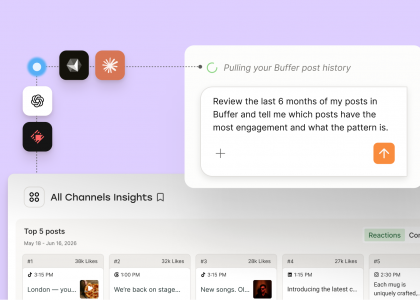


A lot of my brainstorming and early drafts happen in Claude. It’s where I rough out the angle for a LinkedIn post, work through a half-formed thought from a walk, or pull together a few screenshots, a quote from an Apple Note, and a half-finished Canva file into something I’d actually want to publish.
And since I connected Claude to Buffer, posting to social media has gotten even easier.
Now I can ask Claude what resources I’ve already saved on any topic, let it pull from the tools I already use, shape an idea while it’s still hot, and send it straight to my Buffer queue, without having to leave the chat. It’s the first time AI has felt useful for my actual workflows, not just for answering questions about them.
Here’s how to set it up and how I use it day to day.
Jump to a section:
What is the Buffer MCP, and how does it work with Claude?
How to connect Buffer to Claude
Connect the Buffer MCP to Claude
Connect the Buffer API to Claude
How I use the Buffer + Claude setup to post to social media
See what’s scheduled across every channel
Draft, schedule, and repurpose posts — or save them for later
Edit posts already in the queue
Now you can do less context-switching, more of the actual work
What is the Buffer MCP, and how does it work with Claude?
If you’ve never run into the term, an MCP (Model Context Protocol) is the connector that lets an AI assistant like Claude talk to other tools, securely and with your permission. Think of it as the wiring that turns Claude from a chat window into something that can actually do work in your other apps.
The Buffer MCP is the integration that wires AI assistants like Claude into your Buffer account. Once it’s set up, you can ask Claude, in plain English, to do the things you’d normally open Buffer to do:
See what’s scheduled across all your channels for the weekDraft and schedule a new postRewrite a post for a different platformEdit something already in your queueSave an idea to your content library for later
It works across every channel Buffer supports, which is most of them: LinkedIn, X, Instagram, Threads, Facebook, TikTok, Pinterest, YouTube, Bluesky, Mastodon, and Google Business Profile.
Heads up: the same flow works with other agents, too. Buffer has MCPs for Cursor, Raycast, n8n, and a few others, and ChatGPT and Perplexity are on the roadmap. For now, Claude is the best option if you have a chatbot-heavy setup and the fastest way to go from “I have an idea” to “it’s scheduled” without hopping around tools.
How to connect Buffer to Claude
Setting this flow up is much simpler than it sounds! There are two ways to do it, and both should only take you five minutes or less.
Connect the Buffer MCP to Claude
In Claude web or desktop, head to the Customize tabSelect Connectors, Hit the + plus button, then •••Add custom connectorSelect Add, then you’ll be prompted to log in to your Buffer account again and give Claude permission to access your Buffer account via the MCP.That’s it!
You’ll see a box with two fields pop up: one for Name (this should say Buffer or Buffer MCP) and Remote Server URL, which will be: https://mcp.buffer.com/mcp
Connect the Buffer API to Claude
If you want to go a step further and get more control over the connection (to set up and name keys, set expirations, see usage in Buffer’s developer dashboard), you can connect Buffer via the API. It’s just as simple to do. Here’s the sequence:
1. Open Buffer’s Integrations settings.
In Buffer, head to Settings → Integrations and pick Claude from the list. Buffer will walk you through generating a personal API key from there — give it a name like “Claude” so future-you remembers what it’s for.
2. Install Node.js 18 or higher.
This is the one step that trips people up (at least it tripped me up). The Buffer MCP runs on Node, and you need version 18 or higher for it to work. If you’ve never installed Node, grab it from nodejs.org. It should only take about a minute.
If you’re already a Node user, run node -v in your Terminal to check that you have the right version.
3. Add Buffer to Claude Desktop.
Buffer gives you the exact configuration snippet to copy in the Settings.
In Claude Desktop, go to Settings → Developer → Edit Config, paste it in, then restart Claude. The Edit Config button opens the right file for your OS, so you don’t need to hunt down folders. That’s it.
To check if the MCP is working as intended, ask Claude something like: “List my Buffer channels.” If it pulls them up, you’re in.
For the full walk-through with screenshots and troubleshooting, check out our in-depth step-by-step setup guide.
How I use the Buffer + Claude setup to post to social media
Once you have the MCP set up, it’s time to play with it. With Buffer and Claude connected, the same chat becomes your scheduler, your editor, your scratchpad, and your morning check-in. Below are the four ways I actually use the connection, if you need inspiration to get started.
See what’s scheduled across every channel
This is the first thing I do most mornings: ask Claude what’s on my schedule for the week.
In my case, I’m part of two Buffer organizations: my personal accounts and Buffer’s company organization. Without the MCP, that means logging into Buffer, switching organizations, clicking into each channel queue, and squinting at the calendar to mentally piece together what’s going where.
With it, I can just open Claude and ask: “What’s on the schedule for my personal accounts this week?” and Claude returns a clean breakdown with channel, day, time, and a summary of the post. If I’m satisfied with the number of posts in my queue, I can go about my day, and if not, I can get to filling it up.
If this were the only thing the MCP did, I’d still use it. But thankfully, it’s not.
Draft, schedule, and repurpose posts — or save them for later
This is the step that’s had the most impact on my workflow. I can paste a rough idea with a couple of screenshots, point it to a video or carousel that’s sparked an idea using Claude in Chrome, or dictate my ideas using Wispr Flow and get a fleshed-out piece of content that reads very much like me.
Claude’s also great for this process because it uses my custom skill, which I’ve cleverly called “tamis-foundation” to figure out my tone and voice, as well as beef up my ideas. And the more I use it, the closer it gets. Once I’m satisfied with the first draft, I have Claude do one of two things:
Drop it into my Buffer queue. If it’s a text post, I can simply have Claude schedule it at a specific time or use one of my pre-set posting times.Add it to my Ideas. Sometimes the output is a video script or the text for a carousel, so I keep it where I store my content ideas and reference it when I need to create.
I can also stretch the integration by using it to repurpose content. After a post is scheduled, I might see potential for another platform, so I can just follow up with: “Give me a version for [platform].” And it’ll rewrite for whatever platform I specify.
Edit posts already in the queue
Sometimes a post is already scheduled, and I’ll come back to it later, read the opening line, or realize I forgot to add a CTA. With the MCP, I can just tell Claude what I want to change and it does it for me.
On one of my recent LinkedIn drafts, I decided to test out adding in a different CTA and asked Claude to rework just that line. Because it was just a test, I didn’t put too much thought into it, but Claude even highlighted a mismatch between the topic of the post and my roughly thrown-together CTA. Don’t worry, I went back and had it removed again.
Given that I’m constantly going back in to tweak things with my posts, I love having this functionality available to me in Claude.
Now you can do less context-switching, more of the actual work
When it comes to social, I feel like I have hours back in my day. The perks of being able to schedule to social media within Claude begin with less doomscrolling and only compound from there.
Claude hasn’t replaced the creativity. It can’t film my videos or make my carousels. But it gets me much closer to done, faster than ever,
If you’re already on Buffer, this setup takes about five minutes — here’s the step-by-step setup guide again for reference.
And if you don’t have a Buffer account yet, you can start free, connect Claude in the same sitting, and have a scheduling assistant by the end of the afternoon.
Happy creating!