

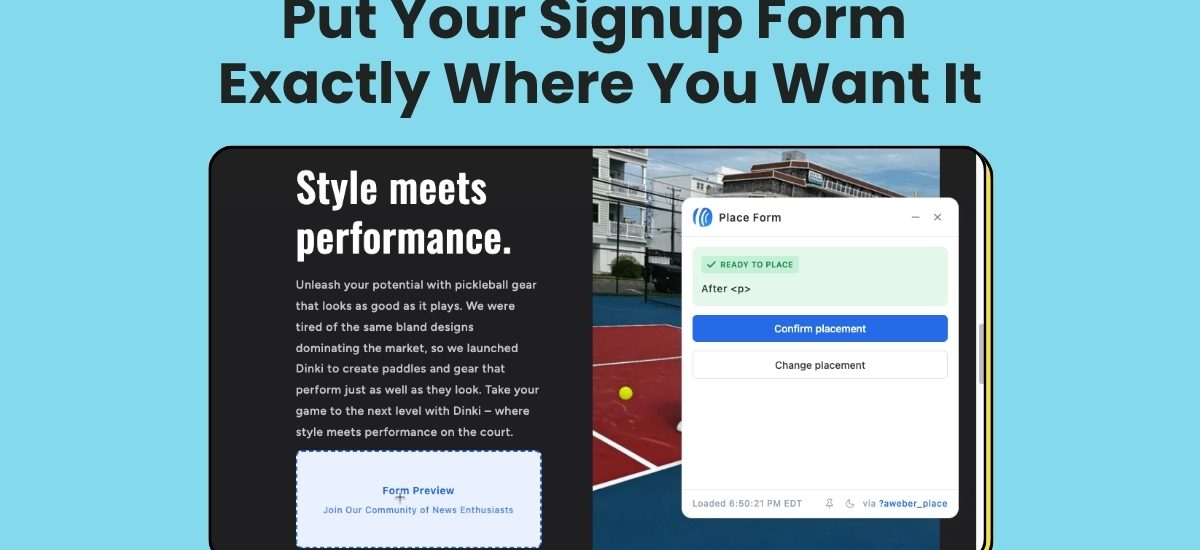
Where a signup form sits on your page changes who fills it out. A form embedded in your content catches someone mid-read, already interested. A form in a sidebar catches someone who’s scanning.
AWeber’s AI Signup Form Builder now creates inline forms and places them on your site visually. Pick the spot on your live page, confirm it, and the form is there. No code required.
Create your inline form in seconds
Three starting points, depending on how you like to work.
1. Custom prompt: Describe what you want and mention it’s an inline form for your site.
2. Fill-in-the-blanks: Answer a few prompts and select “embeds directly on my website” as your form type.
3. Template gallery: Browse the gallery and choose any inline template to start from.
All three start in the same form editor. Adjust your copy, design, and settings before you place anything.
Place it with four clicks
Once your form looks right, placing it takes four steps.
1. Click the Settings tab in the form editor
2. Set the domain where you want the form to appear and confirm your signup form snippet is installed
3. Click “Place on my site”
4. Your live site opens with the placement widget active. Click the section you want, then click “Confirm placement”
The placement widget shows your actual site, not a wireframe or a preview. You’re clicking a real location on your real pages. Then you click confirm, and the form is there.
Works on self-hosted sites
This works on self-hosted sites: WordPress, Shopify, Wix, Squarespace, Lovable, and more. Each domain connects independently in Settings. If you manage multiple sites or client accounts, each form connects to a specific domain and placements stay organized across properties.
Put your form where your readers already are
Your content is already bringing people in. An inline form turns that attention into subscribers, without sending anyone to a separate page or hoping they notice a sidebar. Open the AI Signup Form Builder, build your inline form, and place it exactly where it belongs.
The post Put Your Signup Form Exactly Where You Want It appeared first on AWeber.